Using Oracle Radio
Oracle Radio provides authorized users with channel-based voice and text communication in a Public Safety and Security instance.
- First, an administrator creates a Public Safety and Security Instance, that creates an Oracle Radio user interface URL to access the Oracle Radio browser application. The administrator must also add your user to a group in the Oracle Radio application.
- Your Identity Domain account authenticates you. A Radio administrator must also enable your Radio user and assign the permissions required for each operation. A channel access rule can further restrict whether you can view, join, transmit, or send messages on a channel.
- For your first iPhone voice and text exchange, follow the quick start.
Use  Radio to view available channels, join and connect to a channel, transmit audio, send text messages, review authorized channel activity, and manage personal settings.
Workflows in this guide are step-by-step instructions for completing a task, not an application menu option. Start with the operator sequence below. The API workflows explain related operations and their results for supported clients.
In the browser application on a narrow screen, use Expand application navigation to open the navigation panel, then select the page you need. The panel closes after selection. This responsive browser layout is distinct from the installed mobile application.
Talk and Listen Workflow
- Sign in, open Radio, and verify your displayed identity.
- Select a visible channel to open its workspace. If you haven't joined it, select Join and wait for Joining… to finish.
- Verify that you are connected and listening to the joined channel. In the channel list, use Transmit to choose the channel for your voice. Check the displayed transmit channel. See channel steps.
- Use the control for your selected talk mode: hold Hold to talk and release it to stop, or select Tap to talk and then Tap to stop. Wait for Transmitting before speaking. See push-to-talk.
- Use the channel message composer and review authorized channel activity according to your organization's communication policy. See send messages and channel activity.
Actions
In the browser's Radio page, select a channel to open its workspace. Open the  Channel actions menu (three dots) next to the member count:
- Join: Save membership and start listening when your access allows it.
- Leave: Remove saved membership and stop listening to the joined channel.
- Find: Filter the loaded channel entries by sender or message text. See channel activity.
The main channel button and channel list also provide Join or Leave, depending on membership. Wait for Joining… or Leaving… to finish; talk and message controls for a channel are unavailable while its membership changes. To find a channel, use Search channels in the Channels header.
You can listen to multiple joined channels and use Transmit in the channel list to choose one voice target. Opening a workspace doesn't change that target. The connection bar's Leave control leaves the displayed transmit channel, not all listening channels. Leaving a channel can change the transmit target, so check it before speaking again. The browser doesn't provide a separate stop-listening action that preserves saved membership. See channel steps.
Locations
Open the  navigation menu and select
  Locations under Applications to view available personnel positions. Use Live to inspect the latest available positions, or History to review one person's recorded movement. See Locations for filters, refresh controls, and history steps.
Using Keyboard Shortcuts
- Use Tab and Shift+Tab to move between controls. Use the initial skip link to move to the main content. Selecting a navigation destination moves focus to the destination's main region.
- In an administration table, use the arrow keys to move between cells. Press Enter or F2 to reach buttons and other controls inside the current cell. Press Escape to return to cell navigation, then Tab to leave the table.
- Press Escape to close
 Settings or the channel members drawer and return focus to the control that opened it.
 - In the browser, press a channel shortcut, initially 1 through 9, to open the channel at that position in your saved order. Hold Shift and press the channel key to select a joined, listening channel for transmission. Neither action starts speaking. See channel shortcuts.
- The default talk shortcut is Shift+T. In Push to talk mode, hold the shortcut and release it to stop. In Tap to talk mode, press it once to request transmission and again to stop. Wait for Transmitting before speaking. Follow the talk procedure.
- Talk and channel shortcuts don't activate while you edit text or while Settings or the talk-key dialog is open. Configure them under Settings, in Hotkey; use a talk key different from all channel keys. See shortcut settings.
Signing Out of Oracle Radio
Sign out when you finish using Radio, especially on a shared computer.
- Select
 Sign out in the Radio header.
 - Allow the sign-out redirects to finish and verify You are signed out. Close the browser window when you finish. To return to Radio, select Sign in again.
Sign out ends the Radio browser session and its Identity Domain session. It doesn't disable your Radio user, remove group assignments or saved subscriptions, or revoke credentials used by separate bearer-token clients. To return, open the instance's uiEndpoint and follow the sign in steps.
If a redirect fails or you can't confirm that the session ended, follow the sign out guidance. Closing a tab or selecting Leave for a channel isn't a substitute for signing out.
Oracle Radio Icons
Use the icons to identify Radio controls and navigation items. Your Radio permissions determine which management pages and actions are available.
| Icon | Label | Purpose |
|---|---|---|
| Navigation menu | Expand the sidebar to see navigation labels. |
| Radio | Open the Radio URL to work with channels. Find the URL from the Public Safety and Security Instance details. |
| | Locations | Use Locations to view available personnel positions and review one person's recorded movement. |
 | Channels | View and manage channels. |
 | Users | Manage Radio users. |
 | Groups | Manage Radio groups and permissions. |
 | Devices | Manage registered devices. |
| Settings | Configure personal settings. |
| Channel actions | Open the selected channel's action menu. |
 | Play | Play back audio control. |
 | Download | Download audio control. |
| Sign out | End your browser session. Follow the sign-out steps. |
Push-to-Talk Controls
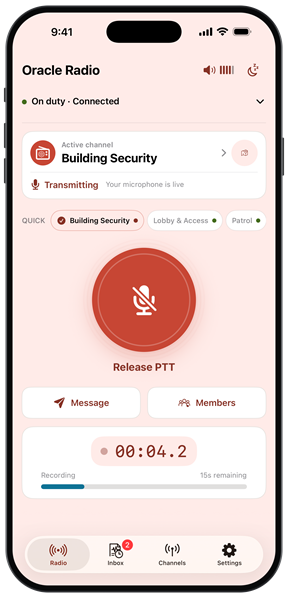
The talk controls show the transmit channel state, the Hold to talk or Tap to talk button, the configured keyboard shortcut, and audio settings. See push-to-talk for the transmission procedure.
On a busy connected channel, authorized users see Hold to interrupt and talk or Tap to interrupt and talk, depending on their selected talk mode. This Priority Talk action requests the floor at elevated priority on that channel; it doesn't broadcast to multiple channels. Wait for Transmitting before speaking. Review permissions if your role requires this action.
Connected Push-to-Talk Controls

Mobile Duty Status and Sign-out
Going off duty disconnects the mobile radio session while keeping you signed in. It isn't the same as signing out, leaving a saved channel, or closing the browser application.
- To pause mobile radio activity, use Go Off Duty and confirm if prompted. Check the displayed duty status before relying on incoming communication.
- To resume, go on duty and verify the connection and selected channel before speaking.
- To end your signed-in mobile session, open Settings, select Sign Out, and complete any confirmation. Verify that the app returns to sign-in.
For Android re-enrollment from Settings, confirming Re-enroll also ends the current session. Canceling afterward does not sign you back in. Follow the Android steps.
The mobile app clears its local authentication state and attempts remote logout. Don't assume that this ends every Identity Domain session in Safari, another browser, or another device. Follow your organization's sign-out procedure on shared devices. For a session that fails to renew, see session recovery.
Receiving Communication on Mobile
Android and iOS support receiving Inbox content and Critical Alerts while the app is in the foreground, in the background, or the device is locked. Stay signed in, on duty, and connected, and allow notifications for visible system alerts. On iOS, denying notifications doesn't block sign-in or foreground Radio listening. Background Reception separately keeps incoming Radio traffic available through the system Push-to-Talk channel and requires microphone access; foreground listening doesn't.
- Sign in to the registered app and go on duty. Verify the connection and your channel access. See duty status.
- Allow Radio notifications when prompted if you want visible system alerts. If you previously denied them, enable notifications for Oracle Radio in the device's application settings.
- Keep connectivity available. Review received text and finalized voice entries in mobile Inbox; Critical Alert priority is retained.
- On iOS, expand the duty and connection row in Radio to review Pocket Mode and its status. Follow the Pocket Mode steps for reception and recovery while locked or using another app.
These prerequisites don't guarantee immediate delivery or receipt during a network interruption. An enabled Pocket Mode switch isn't a delivery confirmation. Closing the iOS app may leave its background session connected; turn Pocket Mode off to stop reception. If expected content is missing, follow the Inbox guidance. For location reporting, review the separate location permissions.
Oracle Radio Mobile Application
The mobile instructions in this guide describe the ready-to-use Oracle Radio application provided by Oracle.
For your first iPhone voice and text exchange, follow the quick start. Available features depend on your permissions and your organization's configuration. The browser application and mobile application can present different controls; use the instructions for your application. See application choices and supported authentication.
On iPhone and iPad, the app provides Radio, Inbox, Channels, and Settings tabs. Android provides Inbox, Radio, and Settings; use the channel controls in Radio to select a channel. These are installed-app controls, not the browser navigation menu.
Phone and tablet layouts can rearrange or resize controls for the available window width and text size. Follow the named controls rather than assuming that a control is in the same screen position as a screenshot. A browser opened on a phone or tablet still uses the browser instructions.
Continue with mobile Inbox, Critical Alert, iPhone Background PTT, or duty status.


To set up mobile access, work with a Radio administrator to complete device registration. For the full registration and sign-in sequence, see Workflow: Enroll an Oracle Radio Mobile Application.
Related Topics
Continue with Oracle Radio administration or supported client integration: