Data Lake Accelerator
Use Data Lake Accelerator with your Autonomous AI Database instance to accelerate the scanning and processing of external data stored in Object Stores.
About Data Lake Accelerator
Data Lake Accelerator is an advanced software solution designed to enhance external data processing performance and scalability.
Deployed on an Oracle-managed VM cluster, it integrates seamlessly with your Autonomous AI Database to accelerate the scanning and processing of external data stored in Object Stores. By automatically allocating additional CPUs based on query demands, it ensures efficient resource utilization and significantly improves query response times, offering a scalable and cost-effective solution for handling large and complex data sets.
Available platforms
Data Lake Accelerator is available for use with AI Lakehouse in the following cloud platforms:
-
Oracle Cloud Infrastructure (OCI)
-
Microsoft Azure
-
Google Cloud Platform (GCP)
Configure Data Lake Accelerator
Configure Data Lake Accelerator for your Autonomous AI Database instance during provisioning, cloning or when you update your instance.
During provisioning or cloning, the Data Lake Accelerator options are included in the advanced section. See Provision an Autonomous AI Database Instance and Clone an Autonomous AI Database Instance for more information. When modifying Data Lake Accelerator options for existing instances, use the Tools tab on the instance Details page.
To select Data Lake Accelerator options for an Autonomous AI Database instance, do the following:
-
Navigate to the Data Lake Accelerator options.
-
During the process of provisioning or cloning an Autonomous AI Database instance, do the following:
- Open Advanced options.
- Open Tools.
-
Scroll to Data Lake Accelerator.

-
For an existing Autonomous AI Database instance, do the following:
-
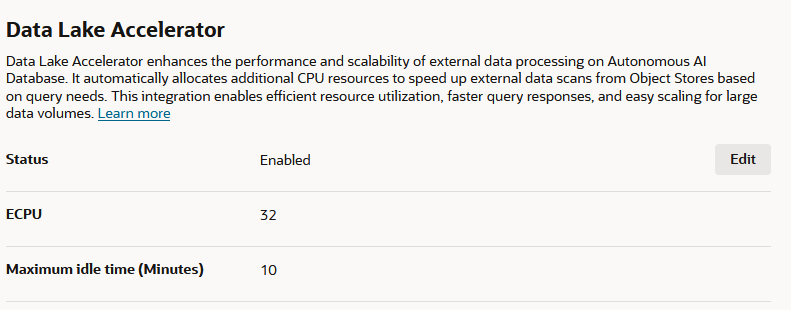
On the Details page for your Autonomous AI Database instance, select Tool configuration.
-
Scroll to the Data Lake Accelerator options.
-
-
Click Edit.
The Data Lake Accelerator edit page displays.
-
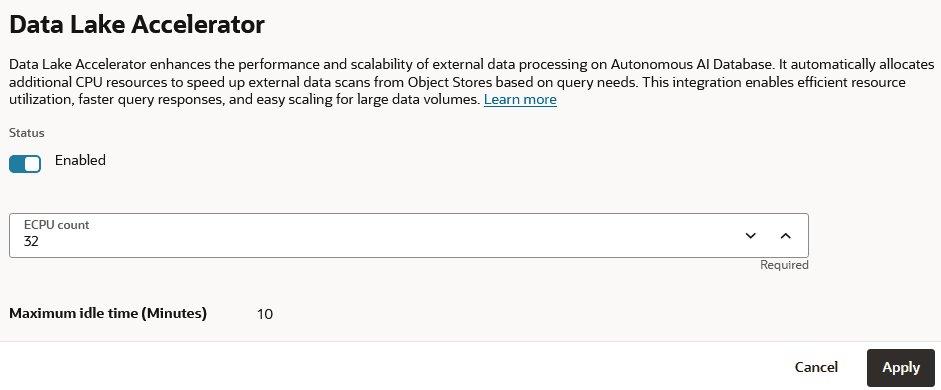
On the Data Lake Accelerator edit page, you can make these selections:
-
Status: Toggle Status to Disabled, to disable Data Lake Accelerator. Toggle Status to Enabled to enable.
-
ECPU count: Enter number of ECPUs, or use up and down arrows to change number of ECPUs. The default is 32 ECPUs. This is the number of ECPUs you are requesting to be allocated. You are billed for the number of ECPUs actually allocated. The range is 32 to 1024 in multiples of 32. In other words: 32, 64, 96, 128 … 1024.
-
Maximum idle time (Minutes): The default is 10 minutes and can not be changed.
-
-
Click Apply.
-
Control Data Lake Accelerator Engagement with SQL
Use the datalake_accelerator_config parameter to control when Autonomous AI Database uses Data Lake Accelerator for external data scans.
You can set this parameter at the system or session level. Its value is a comma-separated list of key:value pairs. Keys are not case-sensitive, and whitespace around keys and values is ignored.
Use the engage key to control Data Lake Accelerator engagement.
| Value | Description |
|---|---|
engage:auto |
Autonomous AI Database determines when to use Data Lake Accelerator based on internal rules, including data size and other query characteristics. This is the default behavior. |
engage:always |
Autonomous AI Database routes eligible external scans through Data Lake Accelerator, regardless of the default size-based and heuristic engagement rules. |
To explicitly restore the default automatic engagement behavior for the database, set the parameter at the system level:
ALTER SYSTEM SET datalake_accelerator_config = 'engage:auto';This setting allows Autonomous AI Database to determine when Data Lake Accelerator is appropriate based on the query and data characteristics.
To direct all eligible external scans to Data Lake Accelerator at the system level, run:
ALTER SYSTEM SET datalake_accelerator_config = 'engage:always';This setting overrides the default engagement rules for eligible external scans.
To use Data Lake Accelerator for eligible external scans only in the current database session, run:
ALTER SESSION SET datalake_accelerator_config = 'engage:always';This session-level setting does not change the behavior for other database sessions.
The valid values for the engage key are auto and always. An invalid value returns an error.