Connecting to an MCP Server
Learn how to connect to an MCP Server.
To establish an authenticated connection from an MCP Client to an MCP Server, you need to ensure the following:
Get the MCP Server URL
-
In the OCI console, select the specific MCP server, and then select the Clients tab.
-
Select the client to open the View Registration Details page for the client.
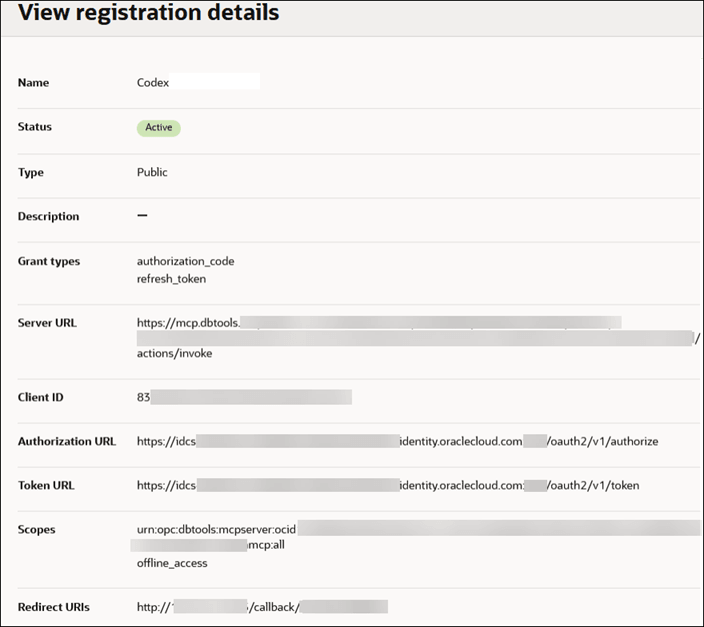
-
Add the Server URL into your MCP Client when adding the remote server.
Ensure You Are Assigned an Application Role
To access the MCP Server, you must be assigned at least one application role. For more information about application roles, see Role-Based Access Control for MCP Server Tools and Reports.
The assigned application roles are included in the authentication token and are used by the MCP Server to authorize access to Tools and SQL Reports.
Choose an Authentication Method that the MCP Client Supports
-
OAuth 2.0
Use this option if:
- Your MCP client supports OAuth, or
- Your MCP client only supports local stdio transport. Use a proxy such as
mcp-remoteto handle OAuth and remote HTTP communication.
To connect to an MCP server using OAuth:
- In your MCP client, select OAuth authentication.
- Sign in when prompted to obtain an OAuth token.
For more information, see OAuth 2.0 and OpenID Connect.
-
Personal Access Token
Use this option if your MCP client supports MCP over HTTP, but does not support OAuth. For more information about Personal Access Tokens, see Generating an Access Token.
You need:
- A domain.
- A user within that domain.
- A Personal Access Token created for that user.
The connect to an MCP server using a Personal Access Token, follow these general steps:
- Confirm your domain and username.
- Create or obtain a Personal Access Token.
- In the MCP client, choose Personal Access Token authentication. Enter the required details and add the Personal Access Token.
See Tutorial: Set Up a Database Tools MCP Server and Integrate with an MCP Client for a step-by-step process that includes both authentication methods.