View and Manage Subsetting Reports
You can view and manage subsetting reports in Oracle Data Safe.
About Subsetting Reports
A subsetting report contains information on three tabs: Details, Subsetted tables, and Error messages (as shown below).
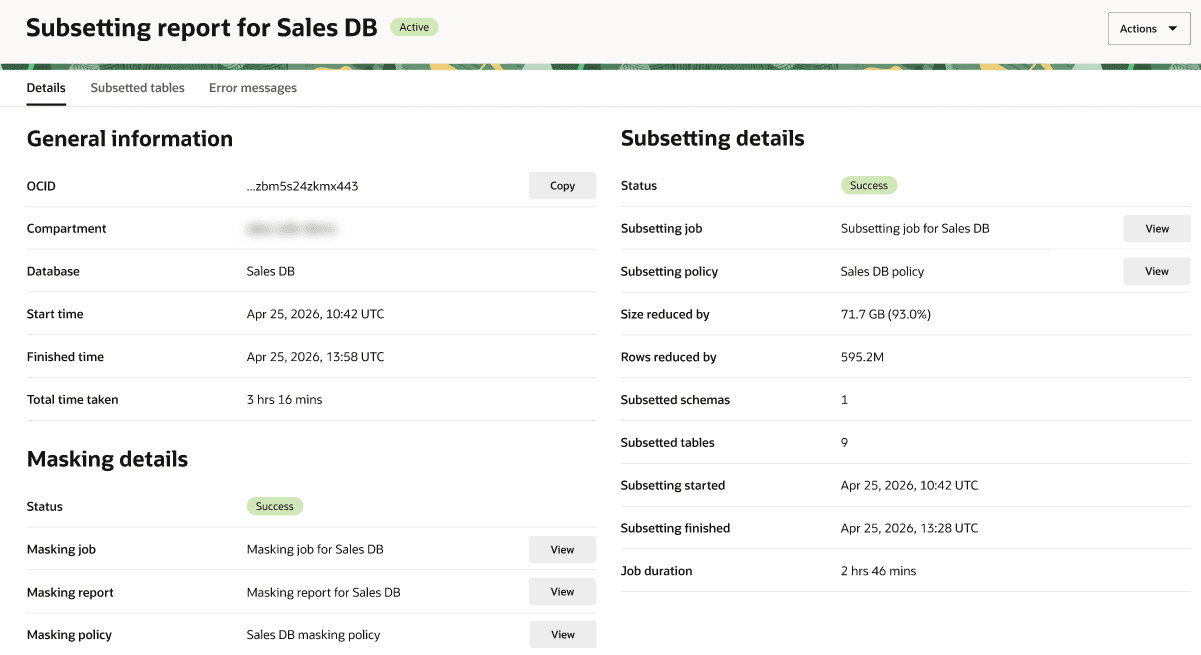
Description of the illustration subsetting-report.png
On the Details tab, you can view General information, Subsetting details, and Masking details.
General Information includes the following:
- OCID of the subsetting report - Select Copy to copy the OCID to the clipboard.
- Compartment that stores the subsetting report
- Database name
- When the subsetting job started and finished
- Total time taken to generate the data subset
Subsetting details include the following:
- Status of the subsetting job (for example, Success)
- Subsetting job name - Select View to open the Work request page for the subsetting job.
- Subsetting policy name - Select View to open the Subsetting policy page.
- Size reduced by value and percentage
- Rows reduced by value
- Number of subsetted schemas
- Number of subsetted tables
- Timestamp when subsetting started and finished
- Job duration
Masking details include the following:
- Status of the data masking job
- Masking job name - Select View to open the data masking job.
- Masking report name - Select View to open the data masking report.
- Masking policy name - Select View to open the data masking policy.
Note
Note: This section is displayed only if data masking was enabled for the subsetting job.
On the Subsetted tables tab, you can view the list of tables that were impacted by the subsetting job. Each row in the table shows the following information:
- Schema name
- Table name
- Size reduced by
- Estimated initial row count
- Final row count
On the Error messages tab, you can view the list of error messages generated by the subsetting job. You can use the Search and filter bar to find error messages. Each row in the table shows the following information:
- Step name
- Error message
- Failed SQL statement
- Error time
View a Subsetting Report for a Target Database
You can access subsetting reports for a target database from the Overview, Target summary, and Subsetting reports tabs on the Data subsetting page.
From the Overview tab, do the following:
-
Apply filters, if needed.
-
Select your target database in the Subsetting jobs list. The Work request page opens.
-
Under Subsetting job information, select View next to Subsetting report. The subsetting report opens.
-
View the information on the Details, Subsetted tables, and Error messages tabs.
From the Target summary tab, do the following:
-
Apply filters, if needed.
-
Select your target database in the Databases with data subsets list. The Subsetted database page opens.
-
Select the Subsetting reports tab.
-
In the Subsetting reports table, search for reports, and then select a View report link.
-
View the information on the Details, Subsetted tables, and Error messages tabs.
From the Subsetting reports tab, do the following:
-
Apply filters, if needed.
-
Select your target database in the Subsetting reports list.
-
View the information on the Details, Subsetted tables, and Error messages tabs.
Generate and Download a Subsetting Report
You can generate and download a PDF or XLS file for a subsetting report.
-
On a subsetting report page, from the Actions menu, select Generate report.
The Generate subsetting report dialog box appears.
-
Select a report format (PDF or XLS).
-
Select Generate report.
-
When the report is finished generating, select Download report.
The report is downloaded to your browser.
-
Select Close.
Download a Subsetting Report
If you’ve already generated a subsetting report, you can download it at any time.
-
On a subsetting report page, from the Actions menu, select Download report.
The Download subsetting report dialog box appears.
-
Select a report format (PDF or XLS).
-
Select Download report.
The report is downloaded to your browser.
Download Subsetting Log Messages
-
On a subsetting report page, from the Actions menu, select Download subsetting log messages.
-
In the dialog box, enter a name and specify a location in which to save it, and then select Save.
Delete a Subsetting Report
-
On a subsetting report page, from the Actions menu, select Delete.
The Delete Subsetting report dialog box appears, warning you that if you delete the report, you will not be able to recover it.
-
Select Delete to confirm.