Scenario: Sending Unstructured Data Using HTTPS or MQTTS
This scenario explains how to use the Internet of Things Platform to connect a device to send unstructured telemetry data to the cloud using HTTPS or MQTTS, and how to view the data in APEX or directly in the database.
Create a digital twin instance without a digital twin model, to send unstructured telemetry over HTTPS or MQTTS, and then confirm the message is available as raw data.
Tasks
Step 1: Create an IoT Domain Group
Use an existing IoT domain group or create one in the compartment for this scenario.
Follow the Console instructions in Creating an IoT Domain Group.
Use the oci iot domain-group create command:
oci iot domain-group create \
  --compartment-id <compartment-OCID> \
  --display-name <domain-group-name>
Run the CreateIotDomainGroup operation and set the compartment and display name.
Step 2: Create an IoT Domain
Create the IoT domain in the same region and associate it with the domain group. Save the IoT domain OCID and the device host from the response.
Follow the Console instructions in Creating an IoT Domain.
Use the oci iot domain create command:
oci iot domain create \
  --compartment-id <compartment-OCID> \
  --iot-domain-group-id <iot-domain-group-OCID> \
  --display-name <iot-domain-name>
Run the CreateIotDomain operation and associate the request with the IoT domain group.
Step 3: Create a Digital Twin Instance
Create a directly connected digital twin instance without a model or adapter. Set an authentication ID because the instance receives device data. For testing, create and use a vault secret. For production, use an mTLS certificate.
To find the instance OCID or External Key after its created, see Getting a Digital Twin's Instance Details.
Follow the Console instructions in Creating a Digital Twin Instance. Select Directly connected, do not select an adapter, and select or paste the authentication OCID.
Use the oci iot digital-twin-instance create command:
oci iot digital-twin-instance create \
  --iot-domain-id <iot-domain-OCID> \
  --display-name <display-name> \
  --auth-id <secret-or-certificate-OCID>
Save the returned instance OCID and external key.
Run the CreateDigitalTwinInstance operation. Set the IoT domain and authentication IDs and omit the digital twin adapter ID.
Step 4: Send Data
Use the instance external key as the device user name. When testing with a vault secret, use its plain-text contents as the device password.
To find the instance OCID or External Key after its created, see Getting a Digital Twin's Instance Details. To find the device host endpoint, see Getting an IoT Domain's Details.
Post a plain-text message to a topic on the IoT domain's device host:
curl -i -X POST \
  -u "<digital-twin-instance-external-key>:<secret-contents>" \
  -H "Content-Type: text/plain" \
  -d "sample data 1" \
  "https://<iot-domain-short-id>.device.iot.<region>.oci.oraclecloud.com/sampletopic"
Use MQTTX or another MQTT client:
- Connect to
<iot-domain-short-id>.device.iot.<region>.oci.oraclecloud.comover MQTTS on port8883. - Use the digital twin instance's external key as the user name and the device credential as the password.
- Enable SSL/TLS and use a CA-signed server certificate.
- Publish
sample data 1to/sampletopicwith content typetext/plainand QoS 1.
- Connect to
Step 5: View the Raw Data
Choose where to view the raw data. Each option requires its own data access configuration.
Before you call the Internet of Things Data API, configure access to your data in ORDS and obtain the OAuth access token for the data host.
Use the Internet of Things Data API to get
rawdata. This example lists raw telemetry from the IoT domain group data host and filters it by the digital twin instance OCID:curl \ -H "Authorization: Bearer <token>" \ -X GET \ "https://<domain-group-short-id>.data.iot.<region>.oci.oraclecloud.com/ords/<domain-short-id>/20250531/rawData?q={\"$and\":[{\"digital_twin_instance_id\":\"<digital-twin-instance-OCID>\"}]}"Before you use APEX, complete Scenario: Connecting IoT Data to APEX.
-
Go to the APEX URL for IoT:
https://<domain-group-data-host>/ords/apex/Use the domain short ID from the device host to sign in:
device-host:<domain-short-id>.device.iot.<region>.oci.oraclecloud.com- Workspace:
<domain-short-id-from-device-host>__WKSP - Username:
<domain-short-id-from-device-host>__WKSP - Password: Enter the initial APEX password that you set when configuring APEX data access for the IoT domain.
Note
Notice the two underscores:__WKSPand__IOT. - Workspace:
-
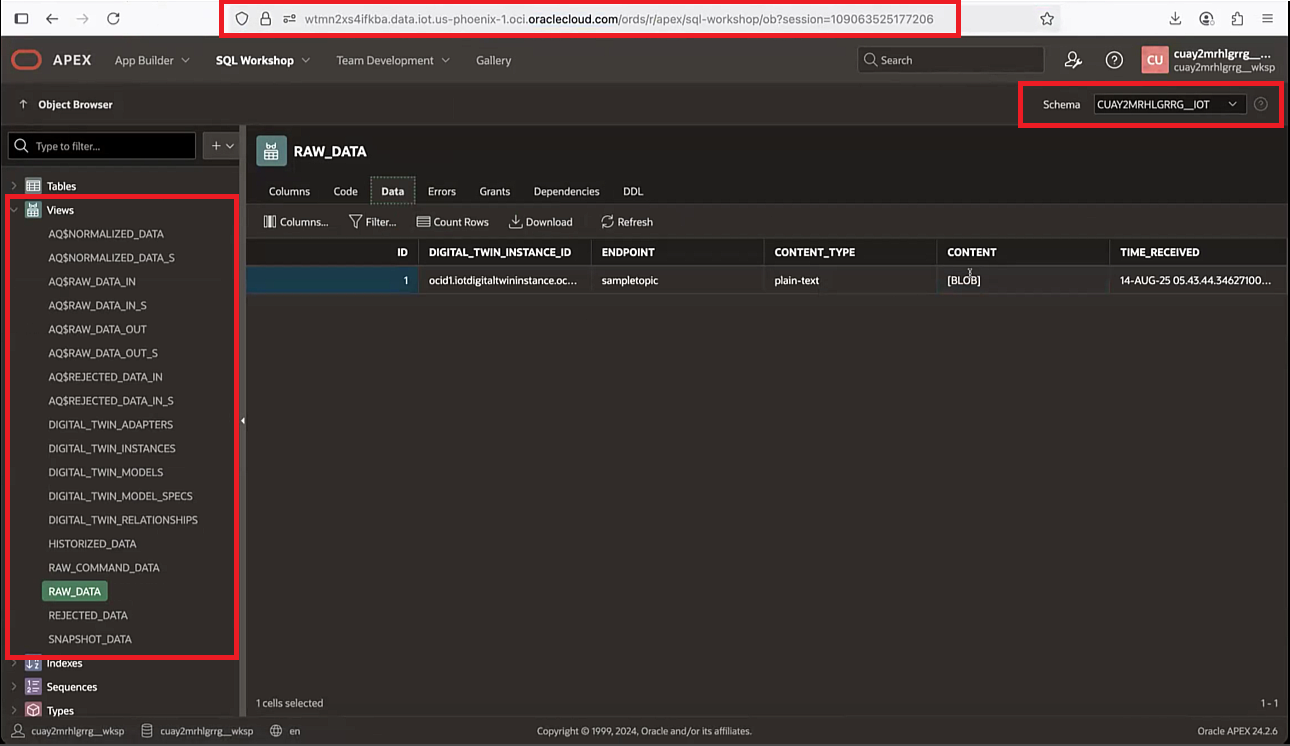
To query the IoT data, select the
<domain-short-id-from-device-host>__IOTschema. Select SQL Workshop, and then select Object Browser.SQL Workshop URL:
https://<domain-group-data-host>/ords/apex/sql-workshop - Confirm that you selected the correct schema, and then run this SQL statement:
select * from RAW_DATAYou can now view the database schemas, views, and raw data for the connected device.
To view a larger screenshot, right-click the image and open it in a new browser window.
-
Before you query IoT data directly in the database, complete Scenario: Connecting Directly to the IoT Database.
Replace
<domain-short-id-from-device-host>with the domain short ID from the device host. Replace<digital-twin-instance-OCID>with the OCID of the digital twin instance whose raw data you want to view.To get the
<domain-short-id-from-device-host>for the IoT domain, get the details for the IoT domain you want to work with.Note
Notice the schema name contains two underscores:__IOT.select * from <domain-short-id-from-device-host>__IOT.RAW_DATA where digital_twin_instance_id = '<digital-twin-instance-OCID>';