Network Anchor
Creating a Network Anchor requires an existing Resource Anchor, and a Delegated Subnet, and is a prerequisite for creating Oracle AI Database@Azure resources.
-
From the Azure portal, select Oracle AI Database@Azure.
-
From the left menu, select Multicloud Resources , and then select the Network Anchors tab.
-
Select the + Create button to start the creation process.
-
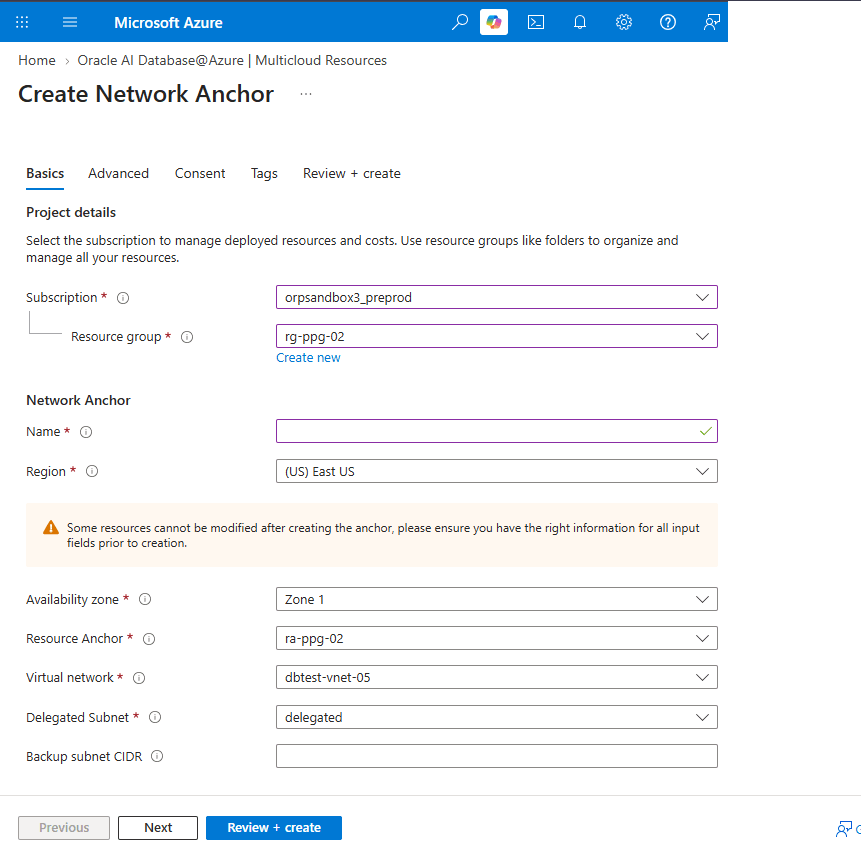
From the Basics tab of the Create Network Anchor flow, complete the following substeps:
-
Select the Subscription in which the Network Anchor will be created.
-
Select or create a Resource group to place the Network Anchor.
-
Enter a unique name in the Network Anchor Name field. The identifier must be 3–24 characters long and may include letters, numbers, or hyphens. It cannot contain underscores, spaces, or other special characters.
-
From the Region dropdown list, select a region where the instance will be provisioned. Check available regions to deploy an instance.
-
The Availability zone field is a drop-down list that contains the AZ where the instance will reside.
-
The Resource Anchor dropdown automatically displays a value based on the selected Subscription and Resource group. Resource Anchor maps to a compartment in OCI.
-
The Virtual network dropdown allows you to select an existing virtual network (VNet).
-
The Delegated Subnet dropdown allows you to select a subnet delegated to
Oracle.Database/networkAttachments. For more information, see Create Delegated Subnet. -
The Backup subnet CIDR is not required for the instance.
-
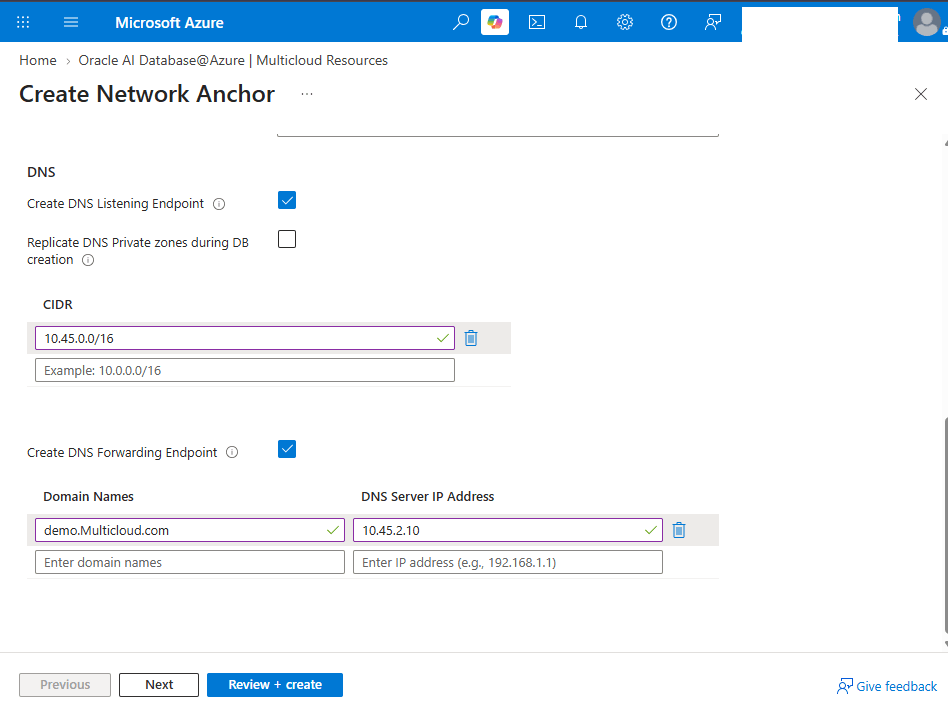
The DNS section allows you to select one or more DNS options.
-
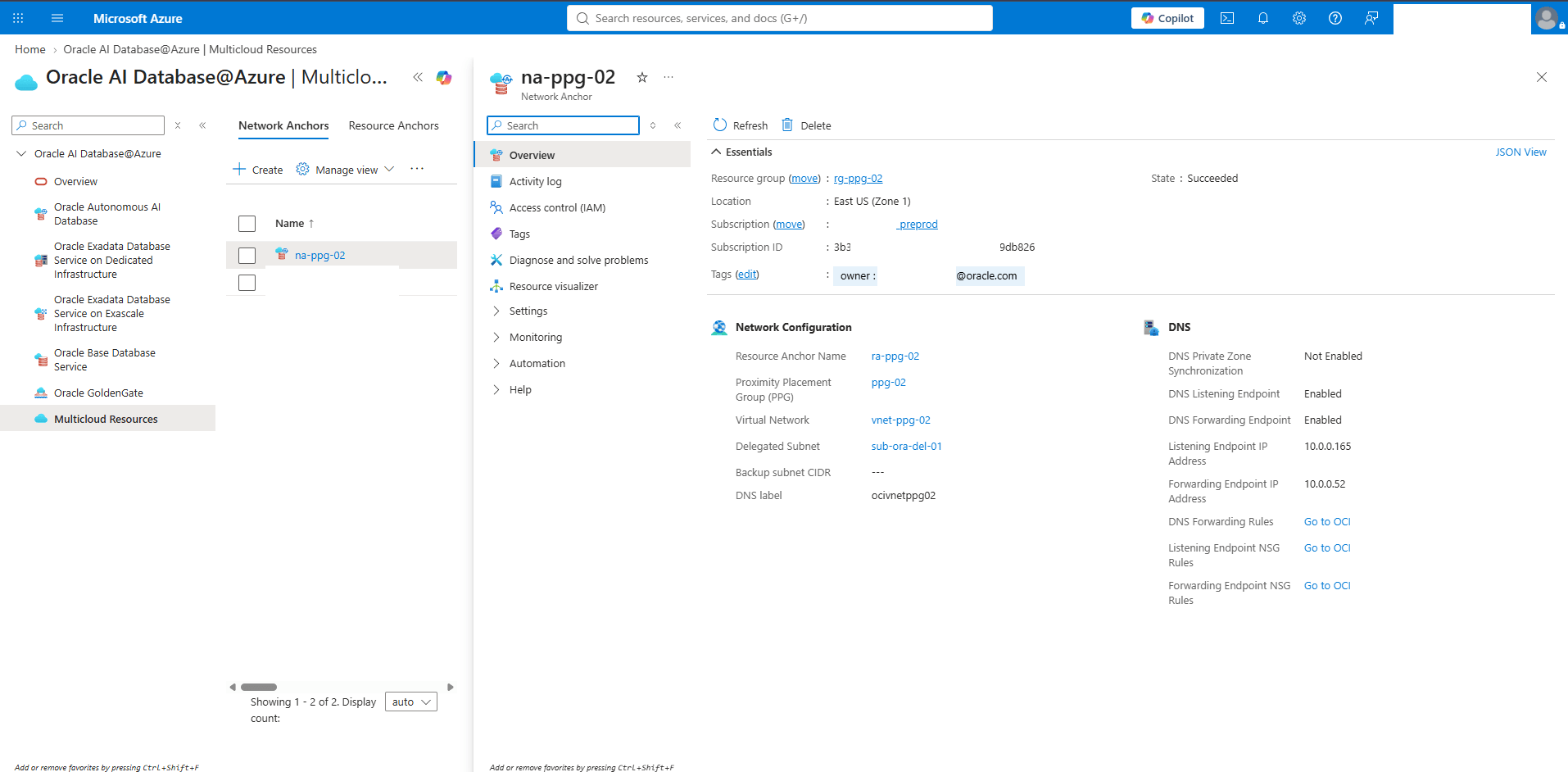
Create DNS Listening Endpoint: Enable this option to create a DNS listening endpoint in OCI, allowing Azure applications to resolve DB instance FQDNs. This endpoint will accept DNS queries from Azure, and you can specify which CIDR blocks are permitted to send requests. After creation, the listening endpoint’s IP address will be displayed in the Network Anchor overview screen.
-
Replicate DNS Private zones during DB creation: Enable this option to copy your database’s private DNS zones from OCI to Azure. This lets Azure services find private IP addresses in OCI using domain names.
-
Create DNS Forwarding Endpoint: Enable this option to create a DNS forwarding endpoint in OCI, allowing DB instances to resolve Azure private FQDNs. You can configure forwarding rules to direct DNS queries to an Azure inbound endpoint. After creation, the forwarding endpoint’s IP address will be displayed in the Network Anchor overview screen.
Note
Note: Both Replicate DNS Private Zones during DB creation and Create DNS Listening Endpoint are overlapping functions. Based on your requirements, select one of the options.
-
-
Select the Next button to continue the creation process.
-
-
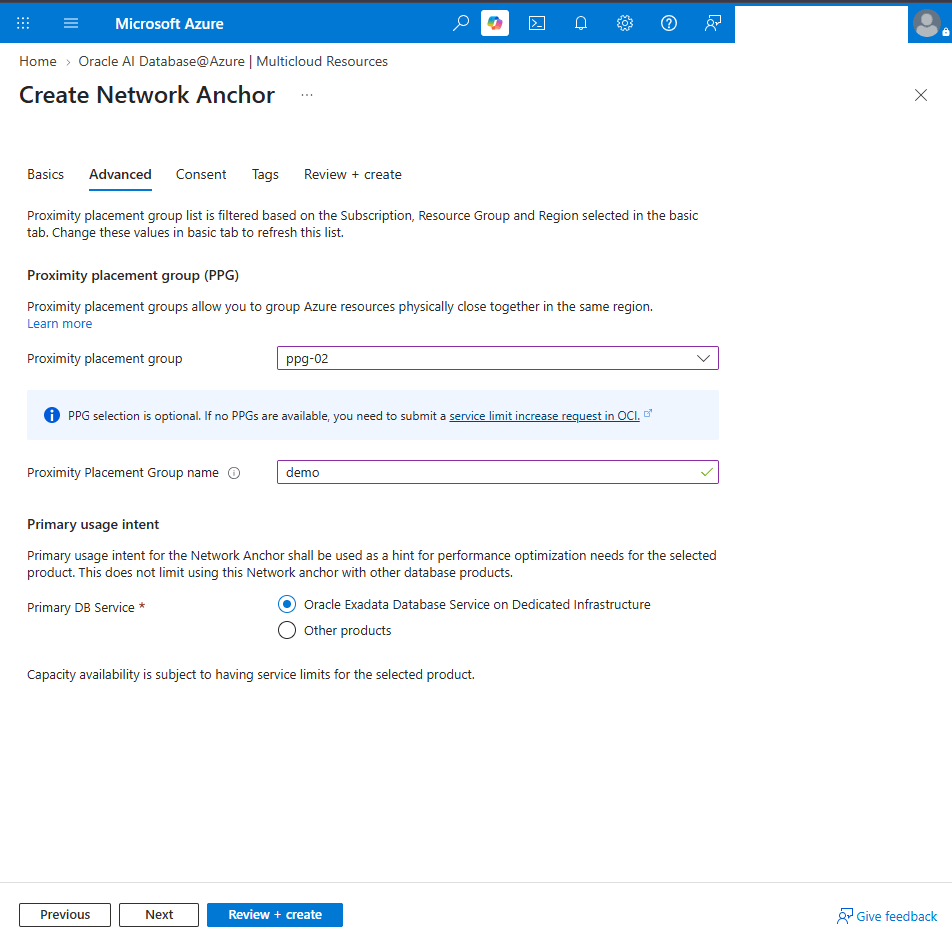
From the Advanced tab of the Create Network Anchor flow, complete the following steps:
Note
Note:
-
Proximity placement group list is filtered based on the Subscription, Resource Group and Region selected in the basic tab.
-
Proximity placement groups allow you to group Azure resources physically close together in the same region.
-
Before you create proximity placement group, verify that the assigned role has permission to create and read
Microsoft.Compute/proximityPlacementGroupsresources. If you use a custom Oracle resource provider role, ensure that it includes theMicrosoft.Compute/proximityPlacementGroups/readpermission. -
To enable Advanced Networking for your Oracle AI Database@Azure subscription, follow the instructions in Enabling Advanced Networking for Azure services with Oracle AI Database@Azure.
-
Use a new virtual network and delegated subnet associated with the Network Anchor. You cannot use a proximity placement group (PPG) with a pre-existing Network Anchor.
-
If you are going to use the Proximity placement group, you must select it before creating network anchor. After the creation, you can not modify or add the proximity placement group to the network anchor.
- From the dropdown list, select the Proximity placement group that you are using. This is an optional step. If you do not have an existing proximity placement group, follow the Create a proximity placement group using the Azure portal guide to create one.
Note
Note:
-
If the Proximity placement group list is empty, verify the selected subscription and region, confirm that you have the required permissions, and check whether any proximity placement groups are available.
-
If you created an empty proximity placement group in Azure as described in the documentation, but it does not appear in OCI, create a limit increase request in OCI.
-
To request an increase in Azure-specific capacity, follow your usual process for submitting a service request (SR) to Azure Support.
-
For eligible Oracle AI Database@Azure subscriptions that use private offers only, the default limit value is 5. For other subscription types, the default limit value is 0.
-
Each proximity placement group used for Oracle placement counts as one Proximity placement group. A Proximity placement group counts only once, even when multiple Network Anchors use it. The limit is specific to each subscription and region.
-
To learn more about proximity placement groups, see the documentation.
-
-
The Proximity Placement group name field sets the Proximity Placement Group display name shown in the OCI Console for Multicloud DB products. If left empty, a name is generated automatically using the Azure Proximity Placement Group ID and the current timestamp.
-
From the Primary usage intent section, select your primary database service based on your requirements:
Note
Note: Primary usage intent for the Network Anchor shall be used as a hint for performance optimization needs for the selected product. This does not limit using this Network anchor with other database products.
- Oracle Exadata Database Service on Dedicated Infrastructure
- Other products
-
Select the Next button.
-
-
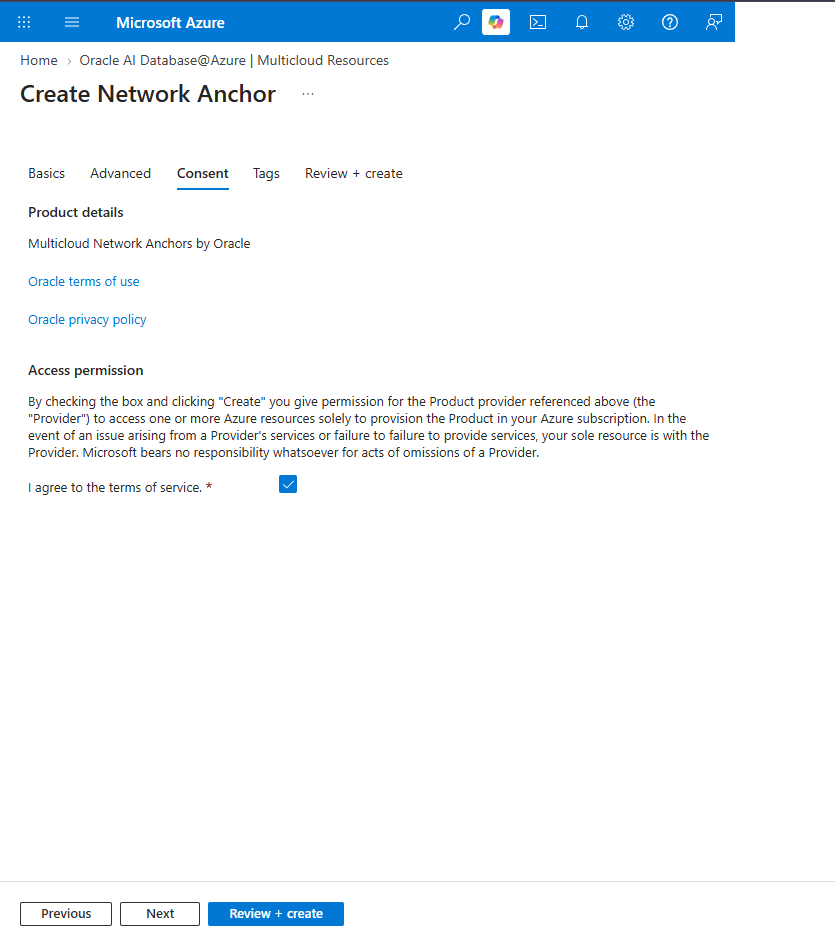
From the Consent tab of the Create Network Anchor flow, read Oracle terms of use and the Oracle privacy policy.
-
Provide consent and select the Next button to continue the creation process, or select the Previous button to go back.
-
-
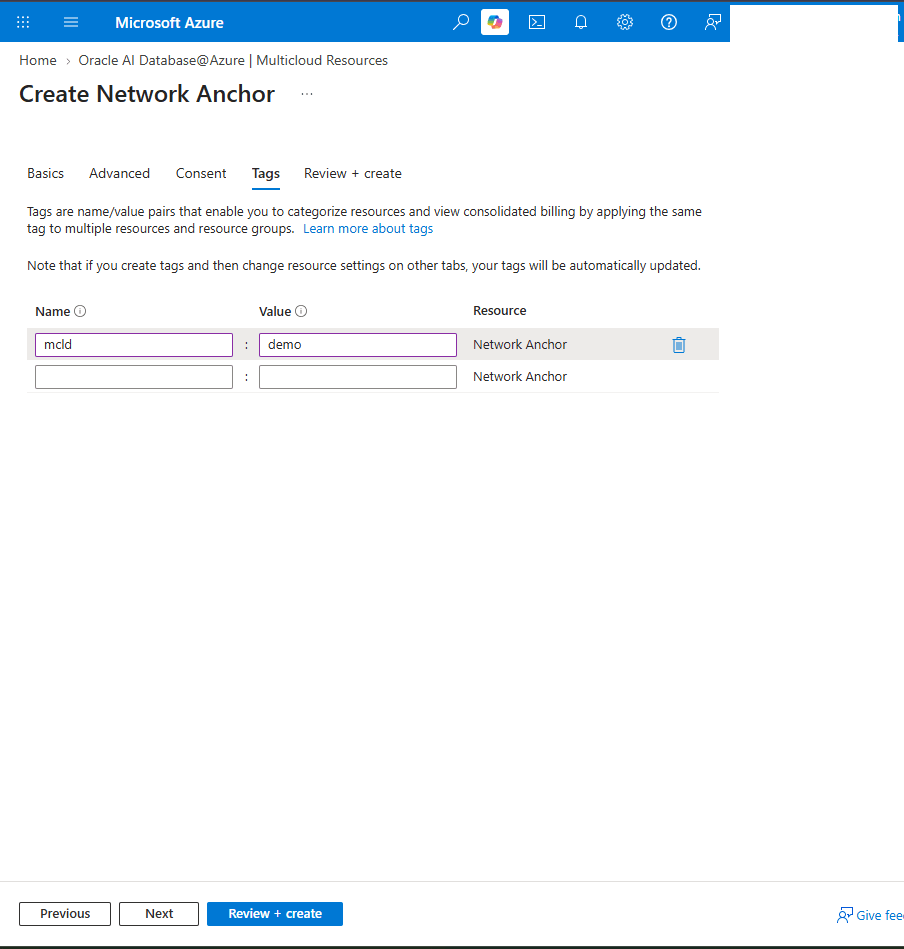
From the Tags tab of the Create Network Anchor flow, complete the following substeps.
-
You can enter tags if desired or required by providing the details. A new line will be added automatically to add more tags. Repeat this step for each tag you want to add.
-
Select the Next button to continue the creation process, or select the Previous button to go back.
-
-
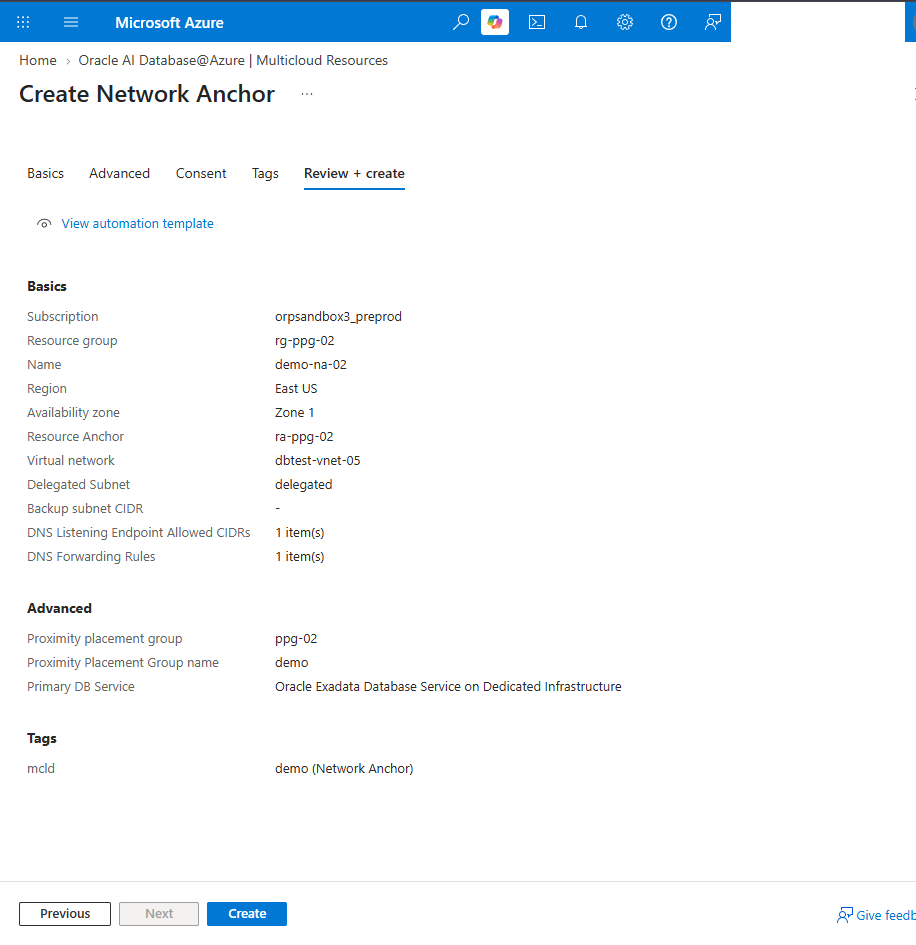
From the Review + Create tab of the Create Network Anchor flow, review the settings you have selected. If any changes are needed, select the Previous button. Once you complete, select the Create button to create your Network Anchor. If you want to stop the creation process and return to the Network Anchor list, select the Cross button.
-
You will be redirected to the network anchor creation progress status page. You can monitor the status of your Network Anchor creation request.
-
-
After you create the Network Anchor, return to the Network Anchors tab. Select the Network Anchor in the list, then select Overview to view its details.
-
If you have selected the Create DNS Listening Endpoint and/or Create DNS Forwarding Endpoint option during the creation of the Network Anchor, you can view the DNS Listening Endpoint and/or DNS Forwarding Endpoint from the Azure portal. You can access it from Oracle AI Database@Azure. Select Multicloud Resources and then select the Network Anchors tab. From the list, select your Network Anchor.
-
If you have selected the Create DNS Listening Endpoint and/or Create DNS Forwarding Endpoint option during the creation of the Network Anchor,
- you can view the DNS Listening Endpoint and/or DNS Forwarding Endpoint from the Azure portal. You can access it from Oracle AI Database@Azure. Select Multicloud Resources and then select the Network Anchors tab. From the list, select your Network Anchor.
-
Network Anchor creation is only available through Azure Portal. However, you can view the details of associated components from the OCI Console.
-
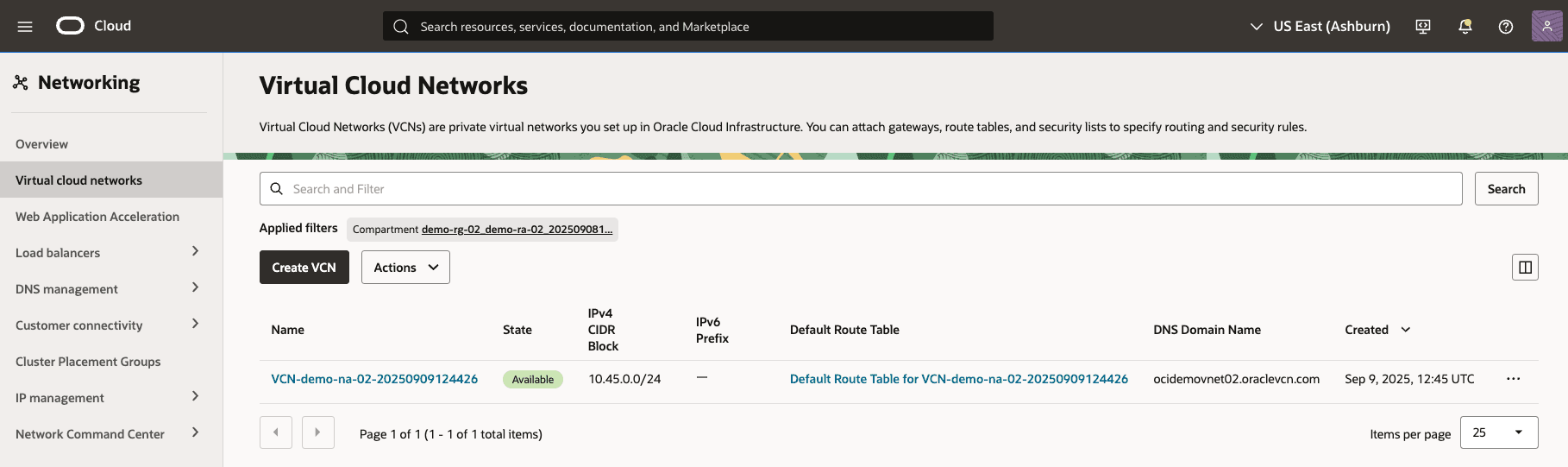
Once the Network Anchor is created, from the OCI Console, navigate to Networking > Virtual Cloud Networks, then select the compartment that was provisioned during the Resource Anchor creation. The VCN listed here will include the name of the Network Anchor created in the previous step.
-
If you have selected the Create DNS Listening Endpoint and/or Create DNS Forwarding Endpoint option during the creation of the Network Anchor,
-
you can view the DNS Listening Endpoint and/or DNS Forwarding Endpoint on the OCI console. You can access it on VCN created automatically by selecting DNS Resolver, and then selecting Endpoints tab.
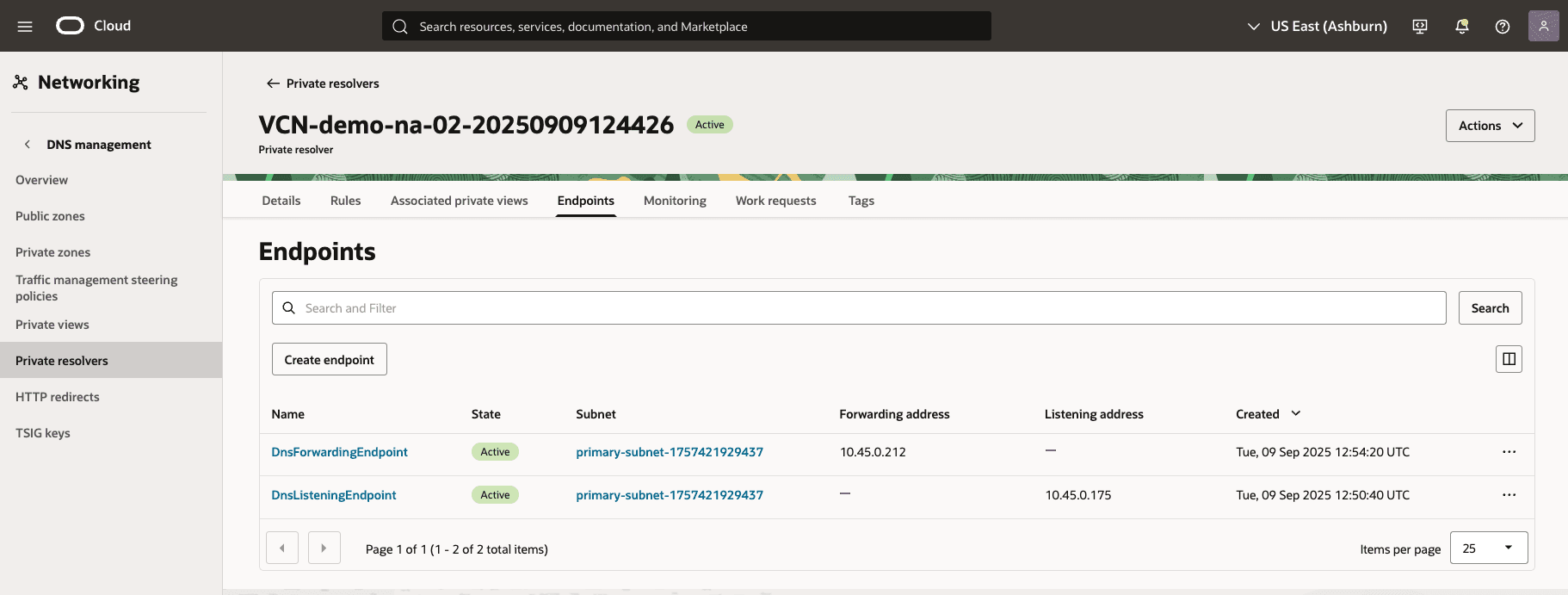
-
you can view the DNS Forwarding Rules on OCI console. You can access it on VCN created automatically by selecting DNS Resolver, and then selecting Rules tab.
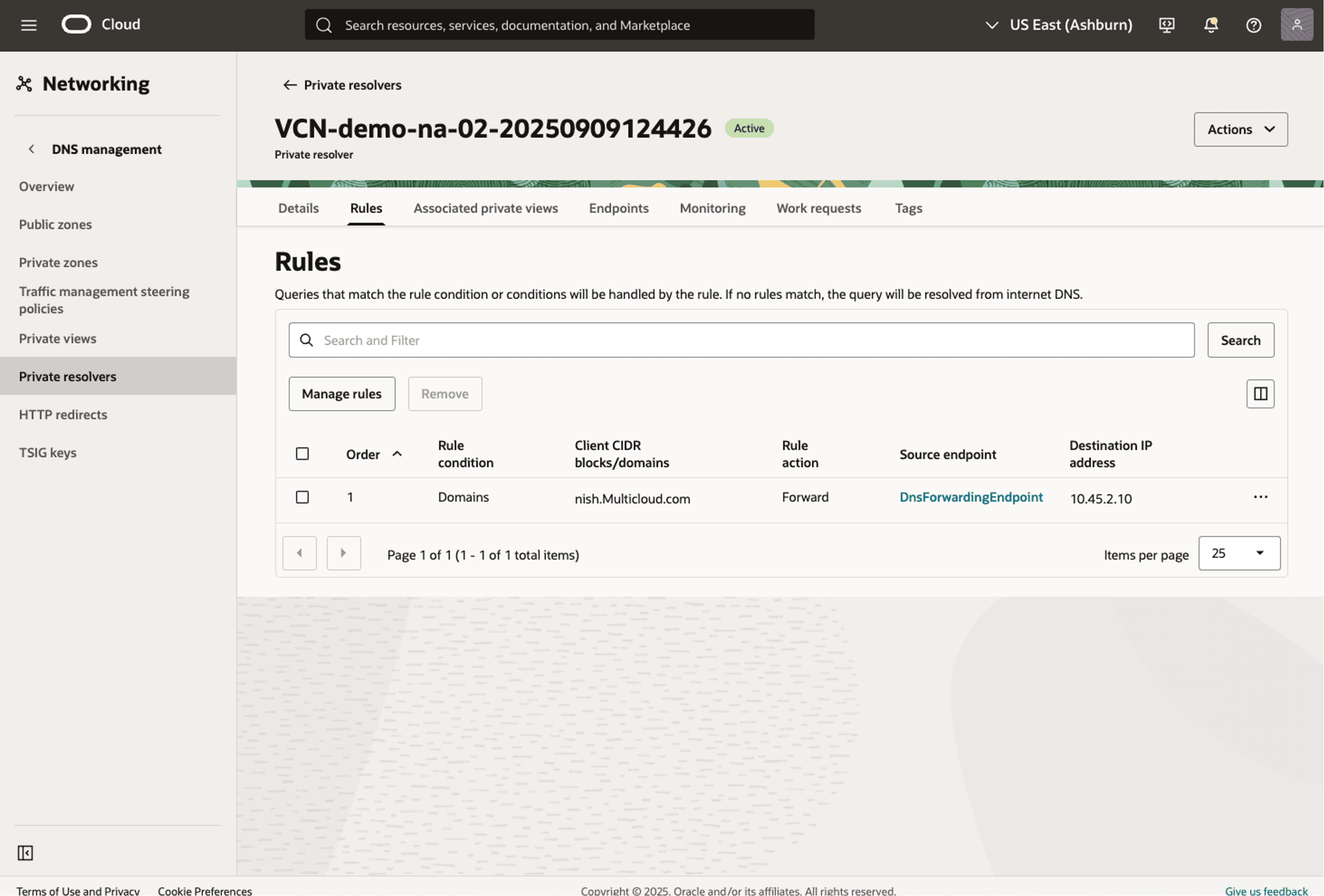
-
-
There is currently no content for this page. Oracle AI Database@Azure team intends to add content here, and this placeholder text is provided until that text is added. The Oracle AI Database@Azure team is excited about future new features, enhancements, and fixes to this product and this accompanying documentation. We strongly recommend you watch this page for those updates.
There is currently no content for this page. Oracle AI Database@Azure team intends to add content here, and this placeholder text is provided until that text is added. The Oracle AI Database@Azure team is excited about future new features, enhancements, and fixes to this product and this accompanying documentation. We strongly recommend you watch this page for those updates.
There is currently no content for this page. Oracle AI Database@Azure team intends to add content here, and this placeholder text is provided until that text is added. The Oracle AI Database@Azure team is excited about future new features, enhancements, and fixes to this product and this accompanying documentation. We strongly recommend you watch this page for those updates.